
In this blog, we will learn that how to login in Moodle as a user and access the course.You can access your courses by signing in Moodle website using a username and a password which is created by the specific administrator only. Once you sign in, you can access your courses using the navigation bar on left side of your screen. All Moodle users must have a specific assigned role which includes default permission, that defines what a user can & cannot do in a course.
Let us first see various roles available in Moodle
Site administrators: Site administrators have permissions to do anything.Users may be assigned the role of site administrator by another site administrator using following steps:
Administration > Site administration > Users > Permissions > Site administrators.
The role itself cannot be edited (or deleted!).
Manager: Managers can access course and modify them, they usually do not participate in courses.
Course creator: Course creators can create new courses.
Teacher: Teachers have full access to build and facilitate a course in Moodle. They can add resources and activities, change settings, enter grades, etc. They can also provide additional privileges for other course members by adding roles for users, either for the entire course or for a particular activity. Teachers can also allow guests limited access to their course.
Non-editing teacher: Non-editing teachers can teach the courses and grade learners, however, they may not add or alter the activities or resources.
Student: The Student role allows the learners to view all visible resources and activities, participate in Forums, take quizzes, turn in assignments and so on. The administrator/ teacher always has the ability to grant or revoke learners access to any course content.
Guest: Guests have minimal privileges in Moodle courses. Guests cannot participate in activities or view leaners’ contributions to the course.
Now let us see what are the steps involved for a user to access the course as a student.
1. Log in to Moodle: Go to the Moodle login page using your URL
(Eg: http://xlprolms.com/login/index.php)

2. Enter your user id/username and password & click on Log In.

3. Once you click on login the home page displays, containing a list of links to all your Moodle courses.

4. All Your courses are displayed are under Course Overview.
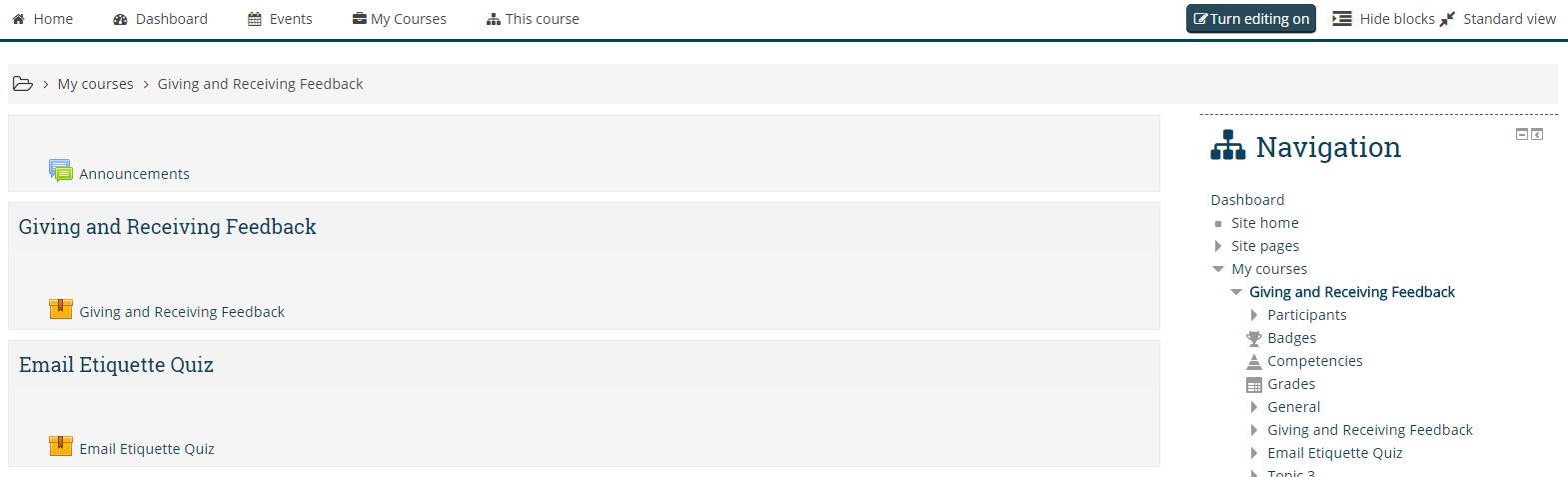
5. Click on the scorm package, of course, you need to view.
e.g. “Giving and Receiving Feedback”.

6. Click on Enter on seeing this screen

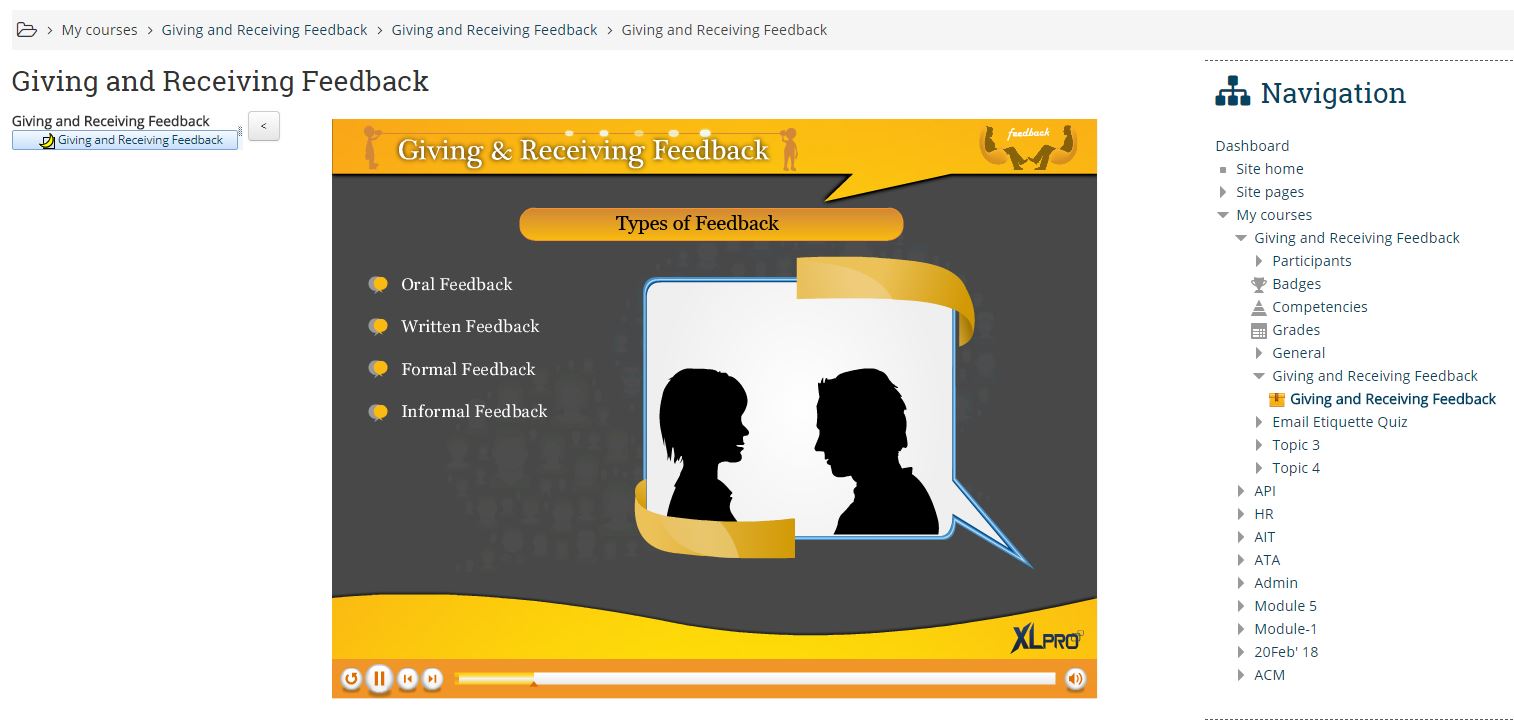
7. Once you click on Enter, Course starts playing.
Go through the course, once course finished come back to home page of your Moodle.
8. To log out, click Log out at the drop-down menu under your name.

It is important to log out of Moodle so that other people using the same computer cannot access your personal data such as marks et . Once you have clicked the logout link, close the web browser.
Be security aware—don’t allow browsers on a computer or any device to remember your login credentials.
