
Steps to Backup or Copy a Section or Sections of a Course in Moodle
While I was preparing a questionnaire during my college days, I remember in Microsoft World I used to copy paste the questions to the different set of projects and it helped me a lot by saving time.
Likewise in E-Learning, course data can be copied from one Moodle course to another by using the Import function found in the Settings block. This allows you to copy all or select course resources and activities to a different course site. You can only use the Import feature when importing from course on the same instance of Moodle
By following the steps you will be able to copy all course content files such as files, forums etc, however, you won’t be able to copy learners data.
Step 1

In the main menu, under “Administration” option click on “Course Administration” and select “Backup” option
Step 2

Once you have selected “Backup” option, you will land on the screen as shown above. Select the options you have to include for taking backup of your course in “Initial Settings”.
Step 3

After you have selected options to save, under “Schema Settings” make sure you have chosen the course for which you have to backup.
Step 4

In “Confirmation and review” option, review the elements you want to take up back up.
Step 5

After you have selected the options for backup, click on “Perform Backup” option in order to take the backup.
Step 6

Wait fo the backup to be created, once the backup is successful you will get confirmation message as “The backup file was successfully created” and click on next to continue.
Step 7
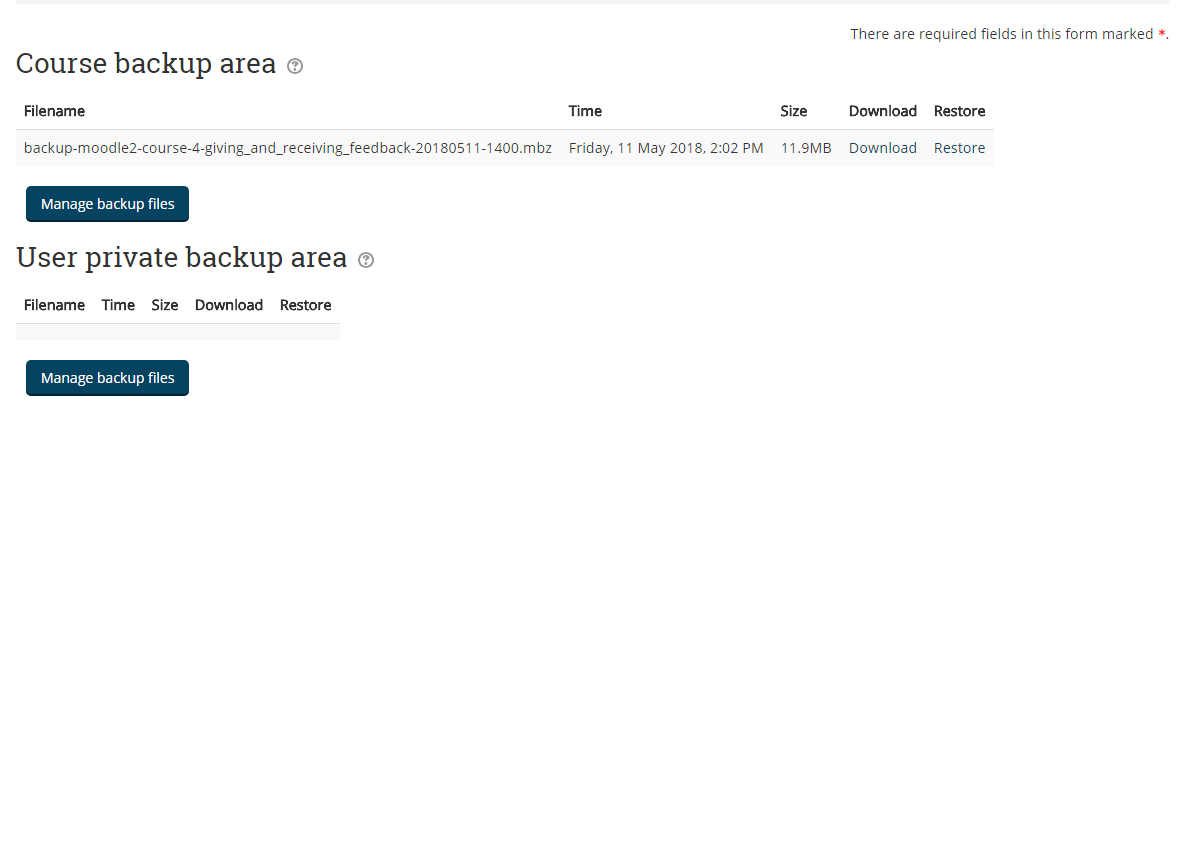
Once the file is successfully created for backup you can see the file in “Course Backup Area”
Step 8

After backup is created, go to the main menu and select “Administration” and under “Courses” option select “Manage courses and categories” option in order to create a new course.
Step 9
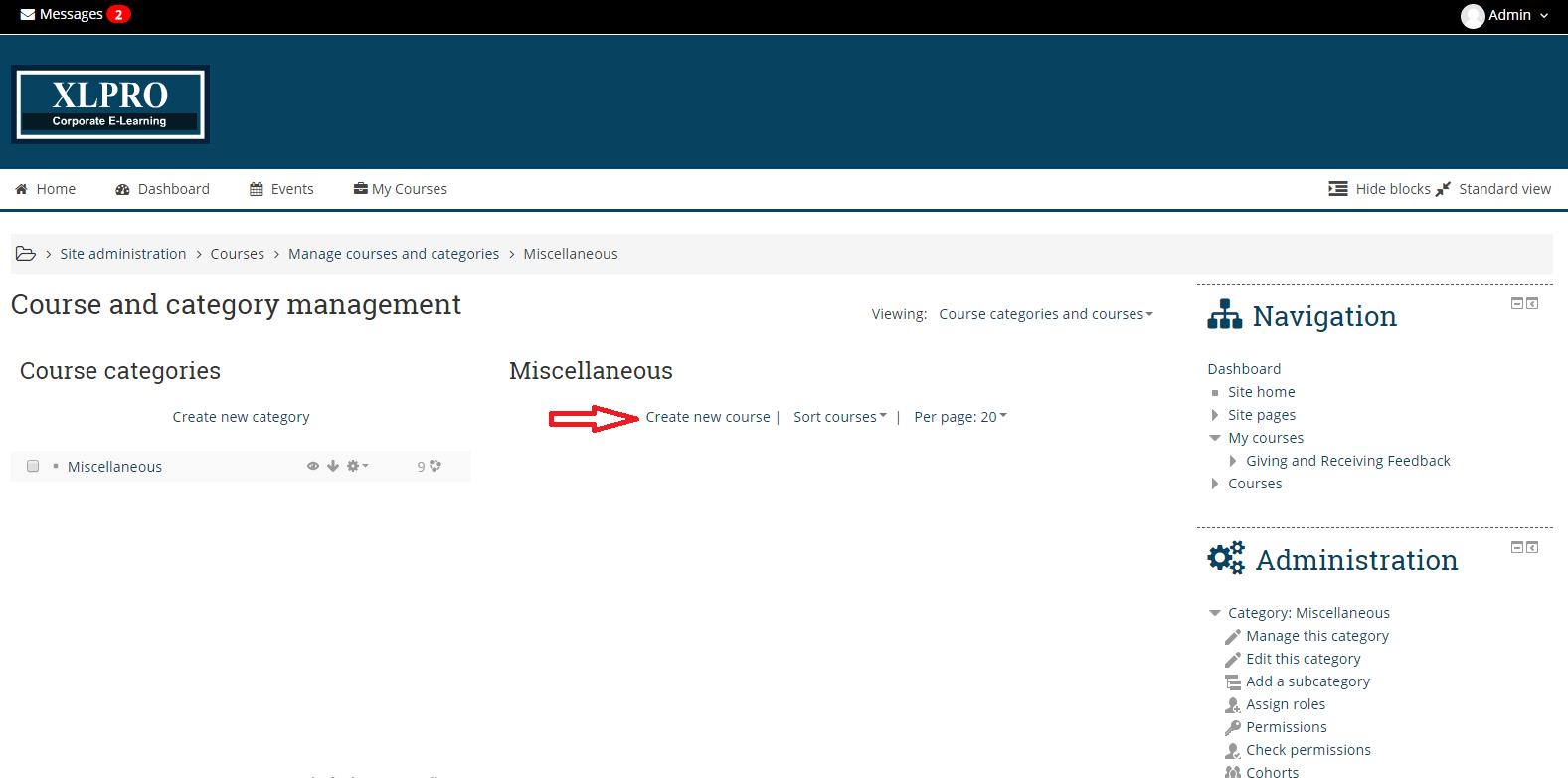
Click on “Create new course” under Miscellaneous option.
Step 10

Input the course details under “Add a new course” option.
Step 11

Once you have entered the course details and made relevant changes click on “Save and return” option in order to create the course.
Step 12

Go to the main screen, under “Administration” option select “Import” option in order to import the backup of your previous course.
Step 13

Choose the file from the hard disk or else drag and drop the file in the box as shown above and then click on “Restore” option in order to restore the backup.
Voila! You have imported the content from your previous course to your current course.
Thus by following these step you can take the backup of your course and move the section of the course from one course to another course. Still having any questions feel free to contact us at hello@playxlpro.com.
